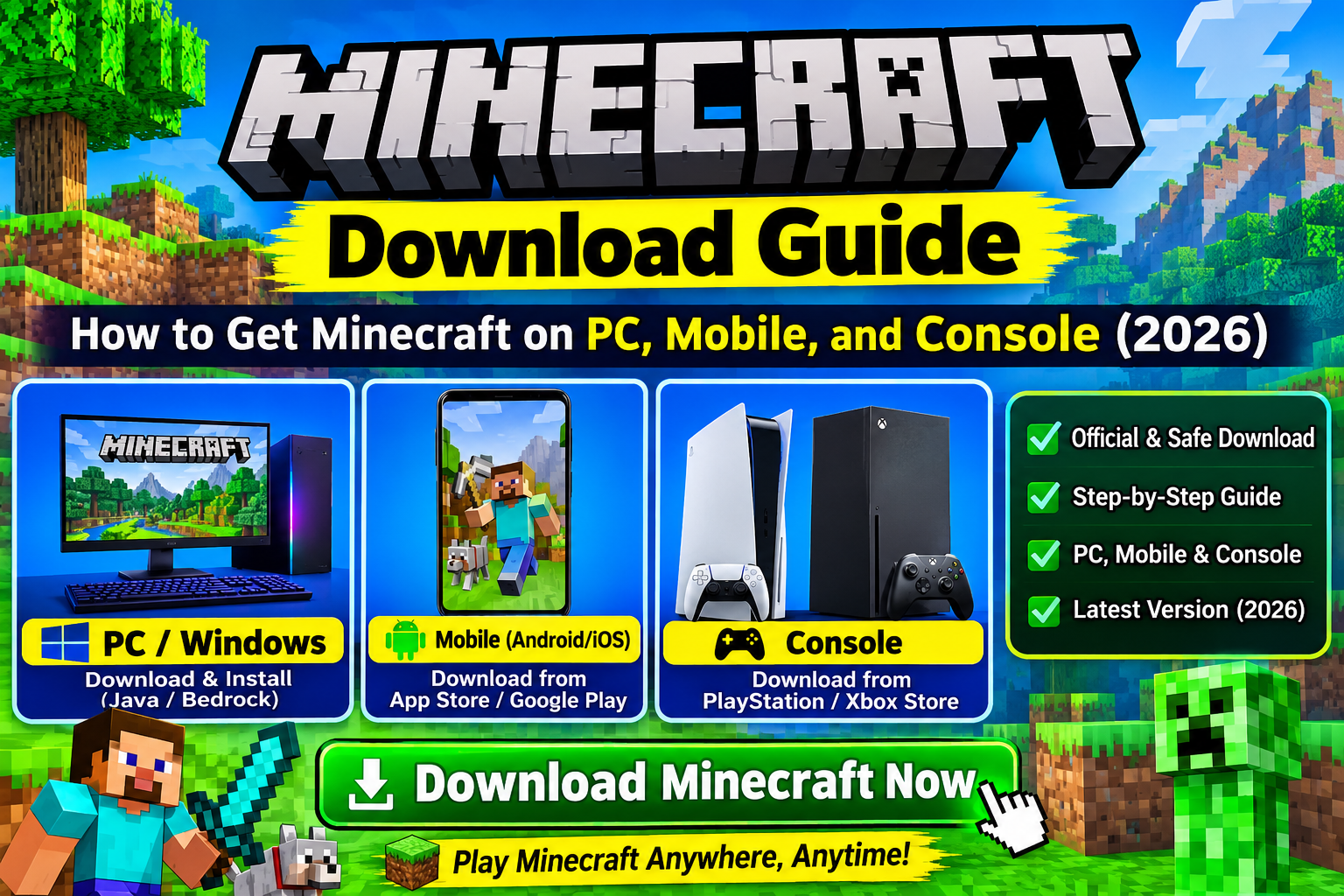
Are you looking for an easy, step-by-step minecraft pocket edition installation guide to play the iconic survival game on your mobile device? Pocket Edition brings the complete Bedrock Edition experience directly to handheld smartphones and tablets. Consequently, completing a proper installation guarantees stable gameplay, smooth touch controls, and fast world loading.
Before customizing touch buttons or obtaining installation files from our main Minecraft Download hub, securing the correct setup process is essential. Therefore, this complete 2026 minecraft pocket edition installation guide covers official Android and iOS setup steps, system requirements, and post-installation tweaks.
Why Choose the Official Pocket Edition Setup?
Following an authentic minecraft pocket edition installation method ensures that your mobile OS receives safe application files directly from authorized channels. Furthermore, official installations grant unrestricted access to global servers and cross-platform multiplayer.
- Cloud World Synchronization: Links seamlessly with your Microsoft account to back up local worlds across devices.
- Full Bedrock Server Access: Connect directly to official multiplayer servers, community minigames, and custom Realms.
- Automatic Security Patches: Receives regular performance updates and bug fixes directly through official app stores.
- Malware Protection: Keeps your mobile storage safe from dangerous installation scripts and corrupted files.
Step-by-Step Minecraft Pocket Edition Installation on Android
Setting up Pocket Edition on your Android phone or tablet requires only a few minutes following these direct steps:
- Open the Google Play Store application on your Android device.
- Type Minecraft into the search bar and select the official app page by Mojang Studios.
- Tap Install (or complete purchase) to begin the minecraft pocket edition installation.
- Allow your device to download and extract core application files automatically.
- Open the game icon and sign in with your Microsoft Account to activate cross-play permissions.
Step-by-Step Minecraft Pocket Edition Installation on iOS (iPhone & iPad)
Apple users can complete their setup process through the App Store using these straightforward steps:
- Launch the Apple App Store on your iPhone or iPad.
- Search for Minecraft in the top search tab.
- Select the primary listing and tap Get or the purchase button.
- Confirm authentication using Face ID, Touch ID, or your Apple ID passcode.
- Launch the application once extraction finishes and link your Microsoft profile.
Minimum Mobile Hardware Requirements
Before starting your installation, verify that your mobile hardware meets these baseline technical specifications:
- Android OS: Android 8.0 (Oreo) or higher (64-bit architecture)
- iOS Version: iOS 13.0 or iPadOS 13.0 or later
- System RAM: Minimum 3 GB RAM (4 GB recommended for high rendering distances)
- Storage Space: At least 2 GB of free internal storage space
- Processor: Octa-core chip (Snapdragon 660, Apple A10 Fusion, or equivalent)
Performance Settings for Smooth Mobile Gameplay
Once your minecraft pocket edition installation completes successfully, adjusting a few internal graphics toggles prevents stuttering and battery drain:
- Lower Render Distance: Set chunk rendering to 6–8 chunks inside Video settings for optimal battery life.
- Disable Fancy Visuals: Turn off Fancy Graphics and Smooth Lighting if frame drops occur near dense forests.
- Customize Touch Controls: Adjust button size and sensitivity sliders inside Touch settings for precise movement.
- Close Background Apps: Clear recent background apps before starting your world session to free up system memory.
Frequently Asked Questions (FAQs)
1. Is Pocket Edition the same as Bedrock Edition?
Yes, Pocket Edition was the original name for mobile builds, but it is now fully integrated into the unified Bedrock Edition engine.
2. Can I play multiplayer with PC players using Pocket Edition?
Yes, mobile players can join cross-platform multiplayer worlds with players on Windows PC, Xbox, PlayStation, and Nintendo Switch.
3. How much storage space does the app require on mobile?
The base application setup requires roughly 1 GB, though extra custom worlds and resource packs use additional storage over time.
4. What should I do if the app fails to install?
Ensure you have at least 2 GB of free internal storage, update your operating system, and restart your mobile device before trying again.
5. Does mobile Pocket Edition support Bluetooth controllers?
Yes, mobile devices natively support wireless Xbox controllers, PlayStation DualSense controllers, and compatible mobile gamepads.
6. Can I install custom add-ons on mobile?
Yes, you can import custom .mcpack and .addon files directly into your mobile app directory to add new textures and features.
7. How do I back up my local saved worlds?
Go to Settings > Profile > File Storage Location, and select External so your world files save safely inside your device storage.
8. Does Pocket Edition require an active internet connection?
An internet connection is required to download updates and log in, but single-player survival worlds work completely offline.
9. Can I transfer my worlds from Android to iOS?
You can transfer saved worlds between operating systems using an active Minecraft Realms subscription or manual file transfer tools.
10. How do I update my mobile game to the newest version?
Your device’s official app store (Google Play Store or Apple App Store) automatically installs new updates whenever you connect to Wi-Fi.
Conclusion
Completing a clean minecraft pocket edition installation provides the ultimate portable sandbox experience on mobile devices. Whether building automated farms, exploring Nether fortresses, or joining multiplayer servers on the go, official mobile setups deliver reliable performance. Remember to keep graphics settings optimized, save worlds to external storage, and keep display drivers updated. Be sure to check out our complete crafting tutorials, command guides, and setup articles to enhance your mobile world today!